How to Automate Budget-to-Actual (BvA) Mapping in QuickBooks Online
QuickBooks' native Budget vs. Actual report works fine right up until your budget stops looking exactly like your chart of accounts. For most growing companies, that's month two.
If you've ever tried to hand a board-level budget to whoever maintains your QuickBooks Online file, you've probably run into the same wall: the budget talks about "Trade Spend" or "Logistics," and QuickBooks talks about GL account 6120 or 5310. QuickBooks Online's own Budget vs. Actual report has no idea these are supposed to be the same thing.
Why QuickBooks Online's native BvA report breaks down
QuickBooks Online lets you build a budget at the account level — you pick a GL account, you enter monthly targets, done. That's fine if your budget is built the same way your books are: one line per account. In practice, almost no board or investor budget looks like that. A real operating budget is built around categories a non-accountant can understand — categories that pull from several GL accounts at once, not a single one.
QuickBooks Online's report has no concept of that translation. It can only compare a budgeted account to that same account's actual balance. The moment your budget's structure diverges from your chart of accounts — which happens almost immediately in any company past its first few months — the native report stops being useful for anyone outside the bookkeeping team.
What mapping actually means here
Here's the part that matters most: you don't have to change how you budget. Most companies already budget at the level a board or investor actually reads — a financial statement line like Gross Revenue, broken into the operational building blocks underneath it, like "Trade Spend" or "Logistics." That structure works. The spreadsheet or model you build it in works. Nothing about automating BvA reporting should ask you to rebuild that.
What's missing is the connection from those categories down to the real GL accounts booking the spend — and that's a many-to-one relationship, not a one-to-one one. Several GL accounts commonly roll up into a single budget building block:
Mapping is defining that roll-up once. It's deliberately one-directional — every GL account rolls into exactly one budget building block, the same way your chart of accounts already assigns each account to one place. That's enough to solve the real problem: reconciling GL activity against categories that don't look like a 1:1 list of accounts, without needing a more complicated splitting model most companies don't actually need.
The manual version, and why it keeps breaking
Most finance teams solve this today with an Excel workbook that maps accounts to categories by hand, then gets refreshed every close by exporting a fresh GL detail report from QuickBooks and re-running a set of SUMIFs or a pivot table. It works — until an account gets renamed, a new vendor account gets added mid-year, or someone reclassifies a transaction and the mapping silently goes stale. Because the mapping lives in a spreadsheet instead of the accounting system, nothing forces it to stay in sync with what QuickBooks is actually doing.
The other common failure mode: the mapping logic lives in one person's head, or one person's file, and every close depends on them personally rebuilding it.
What automating it actually looks like
The fix isn't a smarter spreadsheet, and it isn't a new budgeting process — it's leaving your budget exactly where it already lives and connecting it to QuickBooks directly:
- Keep budgeting the way you already do, at the financial-statement-line and budget-building-block level — no new tool to build the budget itself in.
- Map each GL account to the one building block it belongs in, once.
- Every future close pulls fresh GL activity and reconciles it against that mapping automatically — no re-export, no manual rebuild.
- The same mapping powers more than a single BvA view: budget vs. actual, reforecast vs. actual, and this year vs. last year, all from the same underlying structure.
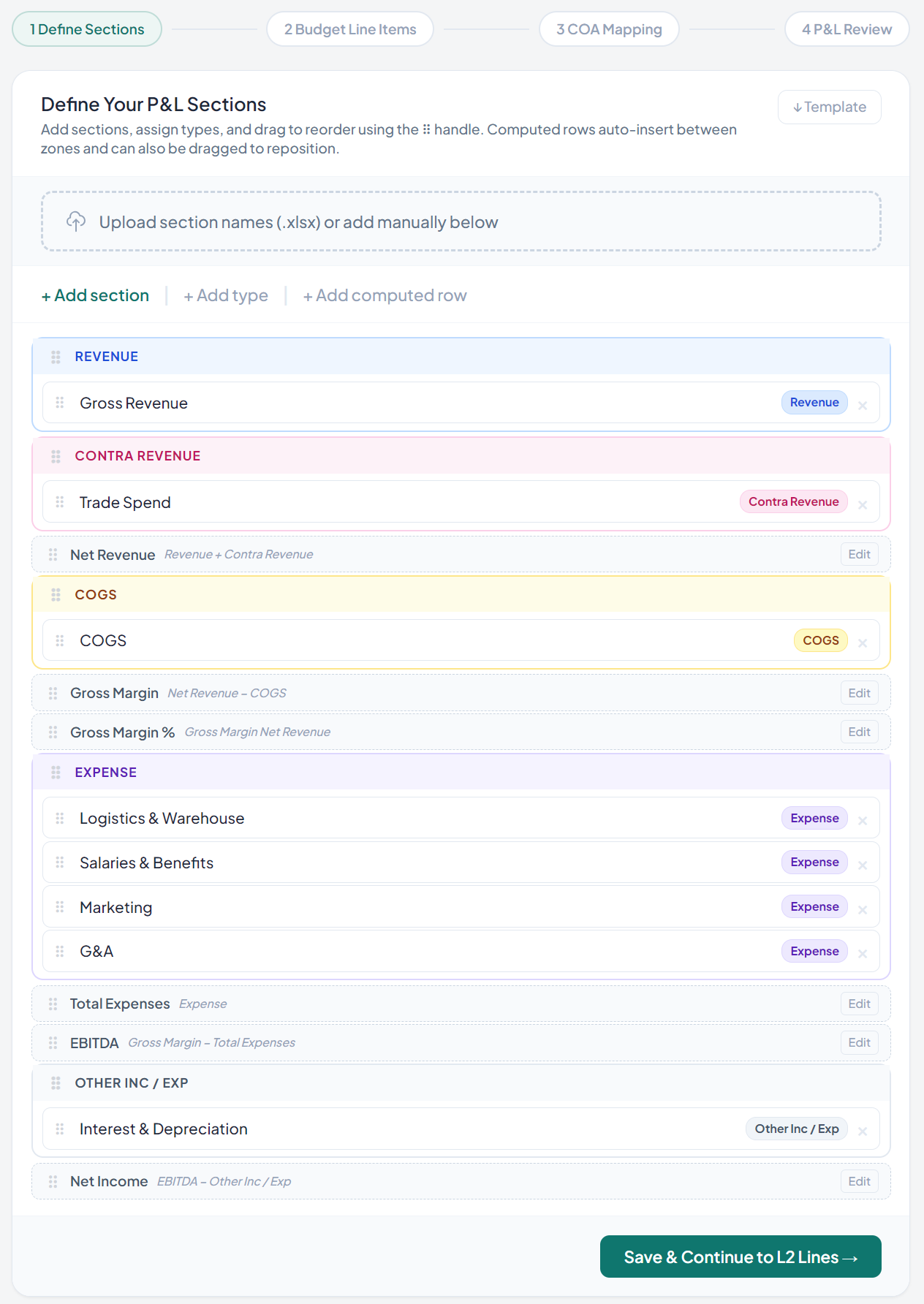
None of the structure above is fixed. The sections (Revenue, Contra Revenue, COGS, Expense, Other Inc/Exp) and every building block underneath them are defined by you, not picked from a preset list — a five-section P&L and a fifteen-section one are equally supported. That's the point: the tool adapts to how your business already thinks about its numbers, rather than asking your business to adapt to the tool.
This is exactly what DrillFi is built around: your budgeting process doesn't change at all. A guided setup wizard handles the GL mapping step once, directly against your live QuickBooks Online company, and from there you get automatic reconciliation plus real drill-down — from a board line item down to the transaction — without ever touching the spreadsheet you already use to build the budget itself.
Keep reading
See it against your own QuickBooks file.
Connect your QuickBooks Online company and see your own variances. Free while DrillFi is in early access. No credit card.
Start free trialor try the live demo